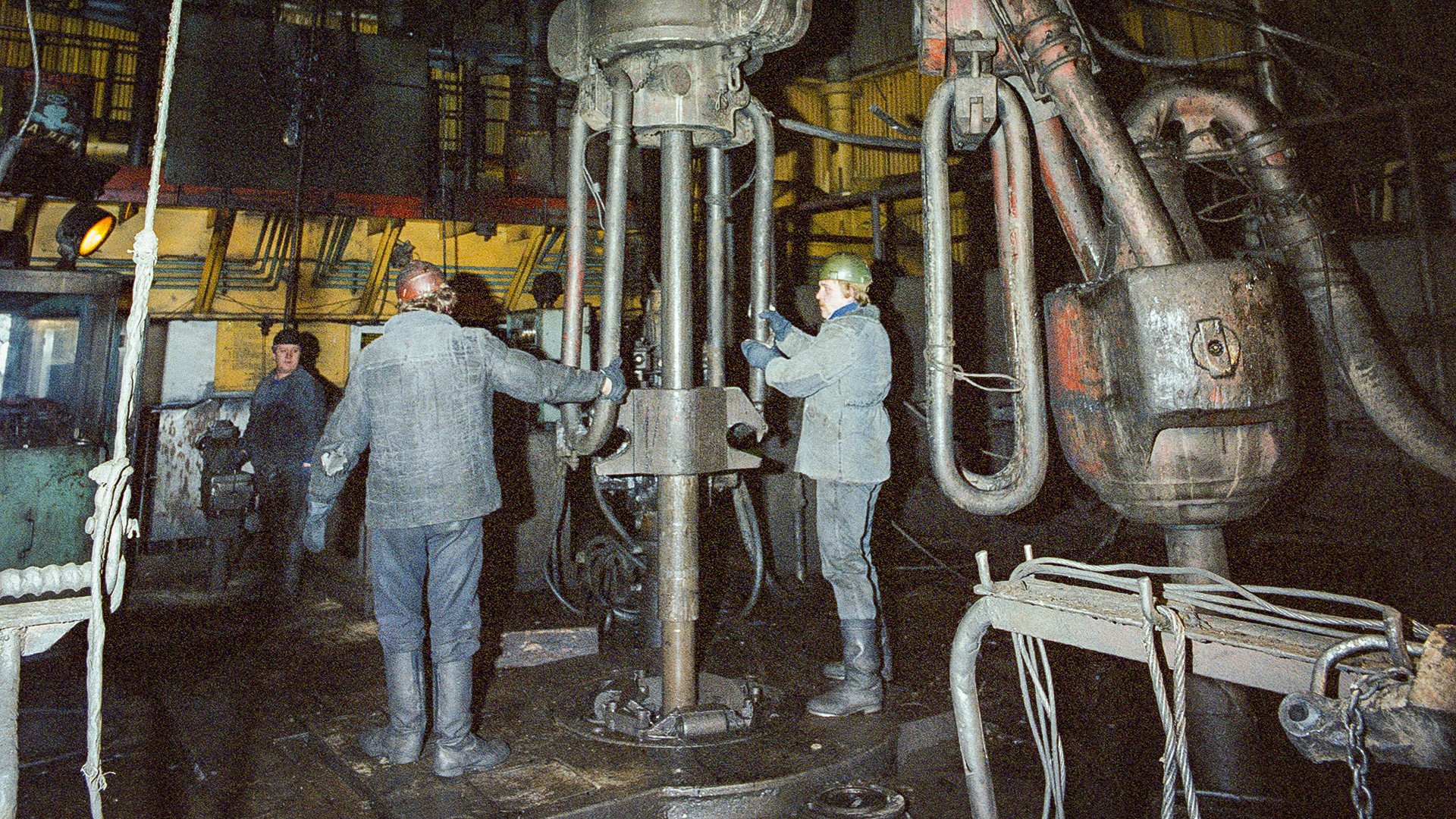
A comprehensive guide to using Fabrik platform for intelligent digital twins and spatial apps.
On the dashboard, you will find a "Create" option. Click on it to open Fabrik's studio.
Familiarise yourself with the studio layout, it has three sections:
Let's create your first experience with printing #FABRIKSPACE in 3D.

To add a 3D model, you will need a model in GLB (or IFC) format - we will explain using GLB files. You can find and download models from online resources like Sketchfab, TurboSquid, and CGTrader. There are three ways to add 3D models into Fabrik's Studio:
You can drag-and-drop a 3D model directly into the step node or 3D scene. Wait for a few seconds and the scene will refresh automatically with the new model.
You can upload the model into the assets folder and look it up through the contextual menu in the node editor. To do this,
There are three ways to remove a 3D model from the 3D scene:
Click on the model on the side menu and scroll down. You should find Delete button, select and save.
Warning! This will delete the model from Fabrik storage.
You can delete the model from the assets folder,

Fabrik supports two types of animations:
There are two methods to apply an existing animation:
Custom animations allow you to manipulate the model using three primitive transformation options:
There are two methods to add a custom animation:

Bring your 3D scenes directly to your website with just a few clicks.
Your interactive 3D experience in live on your website!
NOTE: Make sure your website’s security settings allow iframes from different domains, whitelist *.fabrikspace.com and *.fbrk.in on your domain security settings.

Hotspots in a 3D scene refer to interactive points in 3D experiences that users can click, interact with to display more information or trigger an action.
On the Side Menu in the Fabrik Studio:
In the Side menu:
In the hotspot section on Side menu:
In the next guide, we’ll explore advanced functionalities - adding URLs, embedding media and fetching API data.

Hotspots have the capability to embed API endpoints in the 3D environment allowing users to overlay any kind of data on the 3D models.
On the Side Menu in the Fabrik Studio:

These data points can change color or trigger an action when it goes above or below preset limits.
On the Side Menu in the Fabrik Studio, select a hotspot and add Value Conditions. You can add multiple conditions to each hotspot.

Non-3D media includes text, audio, and video content that sets context to make the experience richer. In this How-To, we will focus on adding video content.
Adding a video into the 3D scene:
Embedding a video from YouTube:

Meta-collab is Zoom/Teams/Meet + 3D. You get the same features as a video call combined with a 3D layout that allows you to annotate and add comments.
Enabling 3D calls:
Starting a 3D call:
Inviting other to join:
Ensure mic and video permissions are enabled for the device.
Take 360 photographs and embed them as augmented reality, virtual reality, or plain 3D experiences on your device. Overlay more information on the image for contextualisation.
Creating a photosphere:
Forcing customers to use an overlay to interact with the 3D environment instead of providing navigation cues that feel natural within the scene breaks the overall immersive experience. In our earlier version, we had an HTML overlay with navigation buttons. This wouldn't work in virtual reality since it ran on the canvas and there was no HTML. The next version had a hotspot in the 3D environment that users could click to navigate, but to assign names and actions to the hotspot made to confusing to the users. These were small buttons and making it easy to click was a challenge. And finally, we realised the button should be where the action is in the 3D environment. However, the action happens at different places in different experiences, and the only way out of this is to provide users an option to convert any object in the 3D scene into a clickable/interactable button. In the example video below, the button is next to the user when in bird's eye view or when seated inside the car, always accessible at arm's length or visible for a click.
Adding a navigation function to a mesh:
This function can be assigned to any 3D model, a mesh within the 3D model, an image, video, or any other content type. The 3D mesh can be animated for a richer experience. Subsequent steps will involve making these interactions more lifelike through gestures and mimicking real-world behavior of these components.
Adding natural elements gives a level of richness and realism to the 3D environment. The first of this series is adding water, specifically the surface of rivers or oceans. By controlling the rate of flow, the reflective nature of water, color, transparency, position of the sun, and other parameters, we achieve a realistic 3D environment at a fraction of the compute cost.
Adding a navigation function to a mesh:
These shaders can be extended to other natural phenomenon like sandy surfaces, fire, rain, snow, etc.
The hands-on experience we have all been waiting for! The mixed reality experience on Fabrik allows users to touch-and-feel 3D in their living environment.
Enabling mixed reality on Fabrik:
The next steps is to enable grab using hand gestures to increase the richness of experience, and combine them with corresponding haptics, sights, and sounds.
Loaders are the pre-scenes that fire up before the actual scene loads. From different features to customised branding, loaders are quick-to-create and an excellent way to communicate messages or launch new features.
Enabling custom loaders on Fabrik:
Our loader service allows us to spin off new IDs into loaders with developer intervention.

The photospheres are not limited to being background props, but can add a layer of richness to the scene by acting as ground for the environment.
To add HDRs with ground control:
We are migrating all our editor features into the viewer in our new version, stay tuned for more!

Hotspots tend to clutter the viewing experience. We believe, no more than 3-5 points of interest are sufficient to capture the user's attention. Too much information tends to dilute focus. Adding hotspots that show up only during certain conditions make the user's experience more focussed and result oriented.
Adding show/hide distances for hotspots:

By adding a delay before animation, a single step node can be used to showcase many instructions. This required multiple steps in the earlier implementation making the entire app quite complex pretty quickly.
Select meshes and add a delay for each animation:

Add a hotspot that triggers the notification system in Fabrik. The notification system can be used to check for alerts and navigate to the step, or open graphs for more information.
Adding a notification hotspot in Fabrik Studio and check on viewer:

The backdrop can have a rich contrast enhancing the 3D model for premium product experiences. To do this, we upload an HDR and control the blur using the image's contrast. This is the best way to get an almost impossible range of color combinations. On the Fabrik viewer,

The pre-cursor to data-driven decision making are decision trees where subject-matter experts define the path the system takes to execute an action. Fabrik's no-code studio allows users to define this decision-tree using node-based drag-and-drop. On the node editor on Fabrik's Studio:
Add more details in each step to make the manual comprehensive.

See 3D scene and video side-by-side without switching between the two. In the Fabrik viewer, start a meta-collab call and use the video window resize button to increase/decrease video size dynamically on top of the 3D scene while your 3D window runs in the background.

Switching between immersive 3D and immersive 360 provides viewers rich context. Like any 3D model, video, or image on Fabrik Studio, drag-and-drop the 360 videosphere (a regular video with 2:1 aspect ratio) into the no-code editor. Adjust the size, position, scale, and run in the viewer. Click on the Immersive option to view in 360 mode.

Open the environment editor on the Heads Up Display menu on Fabrik’s Viewer. Scroll down to select the post-process effect you like, enable and control it’s parameters. See the effect live on the 3D scene, and save!

On the editor, use Ctrl or Cmd keys and click on meshes (3D components) to select them in bulk. Operations are applied to individual meshes or for groups, a random set of meshes cannot be selected for modifications.